Live Demo
Here's exactly what you'll see in the demo
A real installation, not a sales deck: the demo runs on a real, seeded copy of wpOps — not a sandbox with fake toy data or a slide deck walking you through screenshots.
Request demo access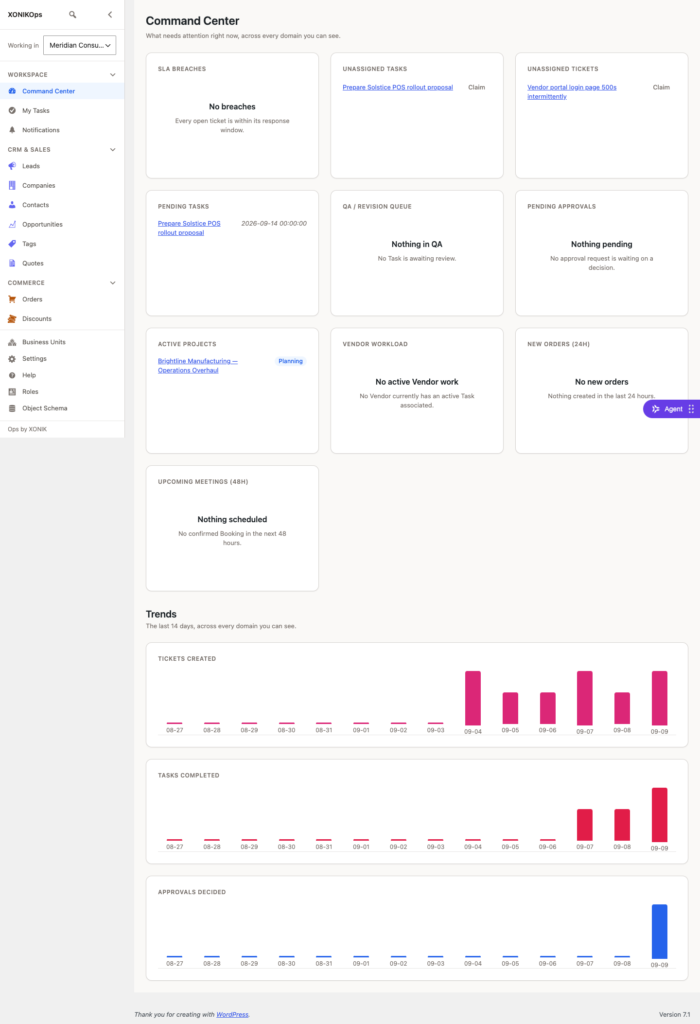
A real installation, not a sales deck: the demo runs on a real, seeded copy of wpOps — not a sandbox with fake toy data or a slide deck walking you through screenshots.
Request demo access Real data across every domain, so what you click through is what a real agency's own installation actually looks like.
The same human-reviewed process as every request — nothing automatic, nothing different here.
A short form on Get Started — no card, no self-serve signup.
Reviewed by hand, typically within one business day.
The shared demo account, real seeded data, every domain above included.
Shared — one demo installation resets periodically, so treat it as a look-around, not a place to save real work.
AI actions are visible in the workflow builder, but live AI calls need a connected provider key, which the shared demo account doesn't have configured — you'll see the real UI, not a live model response.
You're logging into the actual product with a real account, not watching a recording — every click is real.
Say so when you request access — the person who reviews your request can point you to the right screen or add it to the conversation.